Access Codes
Two kinds of access codes live on a property's Nuki lock:
- Per-stay guest PIN — provisioned by the Generate access code task; lives on the canonical guest row; valid for the guest's stay window. See Reservations → Send Check-in.
- Per-teammate persistent PIN — provisioned by the operator; lives on the teammate's
accessCodesarray; valid as long as the teammate's role lasts.
This page covers the teammate code lifecycle.
Provisioning a teammate code
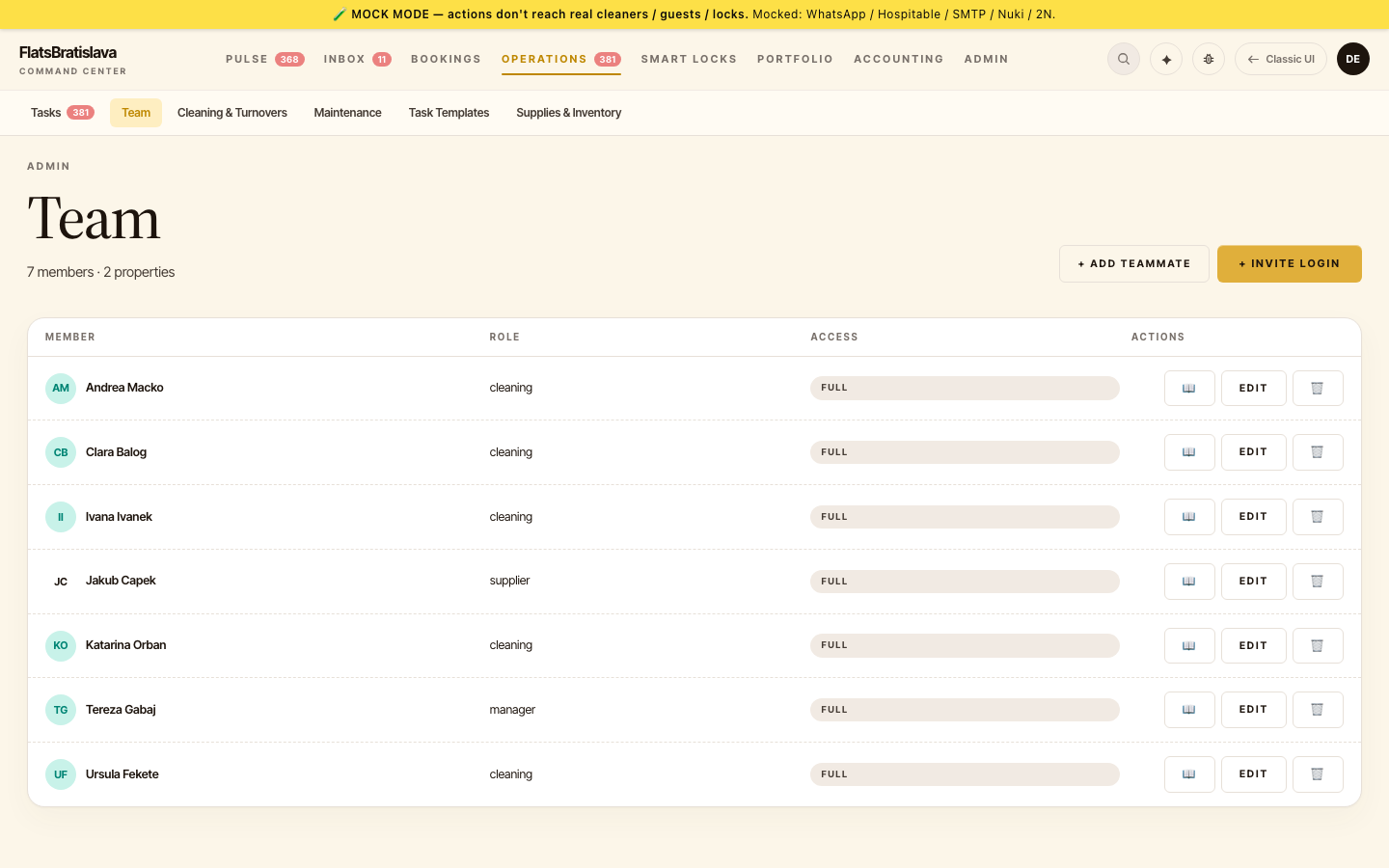
- Open Team & Account → click the teammate row → Edit.
- Find the Access codes section.
- Click Add new code for the property you want to add access to.
- The editor offers:
- Generate fresh PIN — calls Nuki, gets a new 6-digit PIN, attaches.
- Pick from existing Nuki codes — choose from PINs already on the lock.
- Optionally, generate a 2N QR for the building intercom (if 2N is configured).
- Save.
Listing codes
The teammate editor's Access codes section lists every PIN currently assigned to the teammate, grouped by property. Each row:
- Property name
- PIN (last 2 digits visible by default; full PIN on click)
- 2N QR (if generated) — clickable to view
×button to remove
Removing a code
Click × on the code row. The editor shows a confirmation modal:
Remove PIN 84•••91 from Vydrica? This will revoke the PIN from the Nuki lock immediately.
Confirm. The platform:
- Calls Nuki to revoke the PIN.
- Removes the entry from the teammate's
accessCodesarray. - The change is reflected on Smart Lock → Active codes within ~1 minute.
Removal revokes the PIN on the Nuki lock end-to-end — the code stops working on the physical lock the moment you confirm. You can audit a lock's active codes any time in the Nuki app.
Generating a 2N QR
If your property has a 2N IP intercom configured, the editor can also generate the matching QR for the teammate. Same flow as PIN generation; the QR is a JPEG attached to the teammate row and displayed in the editor.
The QR contains a one-tap code the teammate scans at the building entrance to unlock the lobby door without typing a PIN.
Access Codes Safety rules (operator-pinned)
From feedback_access_codes_safety in memory:
Never delete or regenerate codes for active reservations. Testing should only target reservations ≥30 days in the past.
When in doubt about whether a code is in active use, check Reservations → Reservation List for the date range.
Per-stay guest codes (cross-reference)
For the guest-side of this story:
- The Generate access code task fires automatically per-reservation. See Tasks → Auto-resolve.
- The PIN is written to
guests.nukiAccessCodeon the canonical guest row. - The Send Check-in task reads it via
{{guest.nukiAccessCode}}and includes in the WA message. - If a guest's PIN appears to be wrong, see Reservations → Send Check-in.